CygNet Host Updater Utility
The CygNet Host Updater utility (CHostUpdater.exe) can be used to install new software components and patches on a host server. Service files and utilities are copied from a source file system to the appropriate directories and registered if necessary. Client files are copied to an Update folder and then uploaded to the APPS directory. The new files are distributed to clients as part of the normal version management process to ensure you are running the most up-to-date version of the file.
- CygNet Host Updater will only install files; it will not modify files. If a file requires modification as part of an upgrade you must manually perform that task. For example, if a service configuration file requires a change, you must edit the file manually or use the Config File Manager utility to perform the task.
- CygNet Host Updater will only upload files to the APPS, it will not modify records in a service.
- CygNet Host Updater is version-specific. Be sure that you use the correct version for your system. The version number is shown in the title bar and at the bottom of the main dialog box.
For more information see the following subsection:
Updating the Host Using CygNet Host Updater
The CygNet Host Updater utility is stored in the CygNet\Utilities folder (CHostUpdater.exe) and is run on the host server.
Note: All services and most clients must be stopped in order to complete the update. Host Updater will list which clients and services must be stopped as part of the process.
Prior to Performing an Update:
- Make the source files (the new updated CygNet files) available to the host server (via CD/DVD drive, network drive, or by copying the source files to the host server).
- If the source includes a new version of CHostUpdater.exe, copy that file to the CygNet\Utilities folder.
- Back up all files residing on your host server.
To Update the Host Using CygNet Host Updater
- Open the utility. Use Windows Explorer to navigate to the CygNet\Utilities folder, find CHostUpdater.exe, and double-click the program icon.
|
CygNet Host Updater Utility |
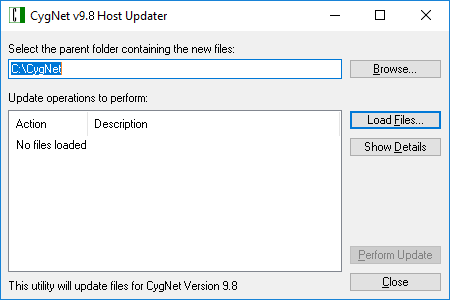
- Search for Files to be Updated.
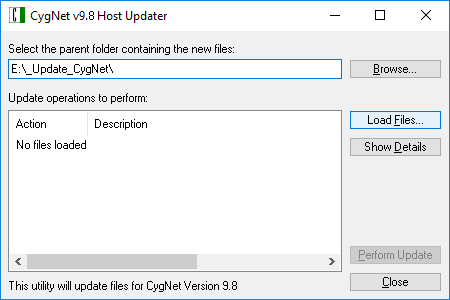
- Browse to select the folder containing the new files.
- Select the source location and click Load Files. This prompts the utility to search for folders on the Host containing CygNet files that may need to be updated.
|
CygNet Host Updater Utility — Browse and Load Files |
- The Process Status dialog box will be displayed while the files are being identified.
|
CygNet Host Updater Utility — Process Status |
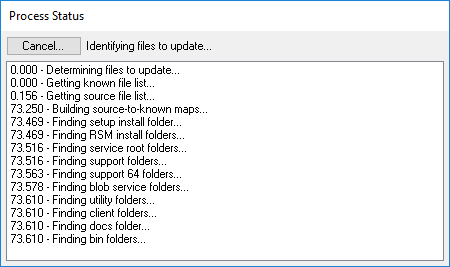
Note: No files are updated during this step.
- Select the Install Folders to be updated.
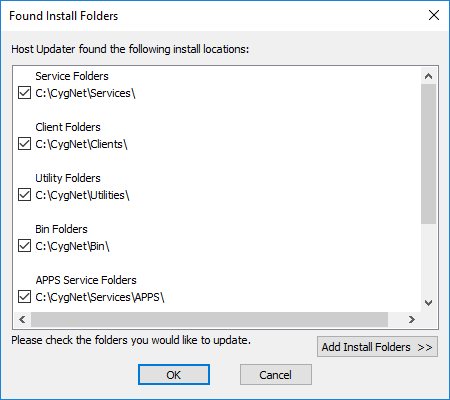
- Once the files are identified, the Found Install Folders dialog box displays a list of folders found by the Updater, containing CygNet files that may need to be updated. Be aware of directories in the list that are unexpected or undesired.
For example, it is not desirable to update the files stored in the system backup folder, or in a custom patch folder.
|
CygNet Host Updater Utility — Found Install Folder |
- To exclude a folder that was found by the Host Updater from the update process, clear the check box next to the folder name.
|
CygNet Host Updater Utility — Cleared Install Folder |
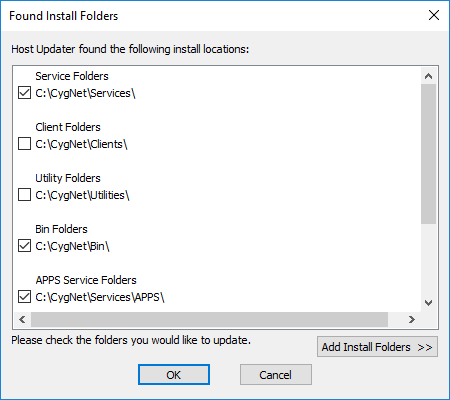
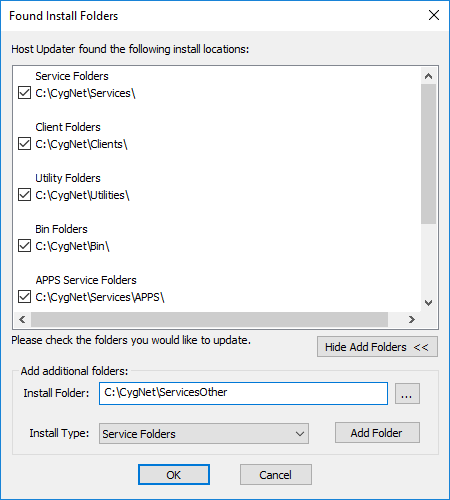
- To add a folder that was not found by the Host Updater to the update process:
- Click Add Install Folders >>.
- Browse to select the Install Folder to be added.
- Set the Install Type to the appropriate folder type, depending on its contents.
- Click Add Folder.
- Click OK to save the list of folders to be updated.
|
CygNet Host Updater Utility — Add Install Folder |
- Review Update Operations to Perform and Show Details.
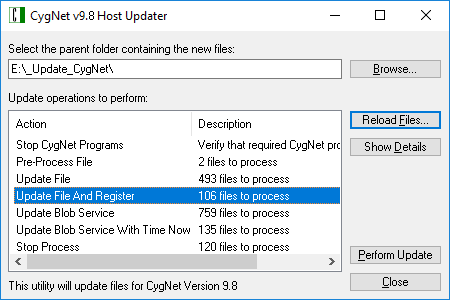
- Once the folders to be included in the update process have been selected, the utility displays a list of Update operations to perform.
- To display more information about individual files and the update operations that will be performed on them, select an action and click Show Details.
|
CygNet Host Updater Utility — Show Details |
|
CygNet Host Updater Utility — Update Operation Details |
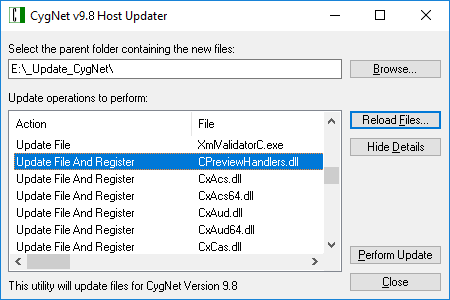
- To change the selection of folders to be updated, click Reload Files. The Found Install Folders dialog box will reopen. Exclude or add update folders as desired, following the procedures described in step 3.
- The Updater is now ready to perform the update. The update operations are described in the following table:
Update Operations
| Action | Description |
|---|---|
|
Update File |
Replaces the local file with the new version of the file from the source. |
|
Update File and Register |
Replaces the local file with the new version of the file from the source and performs a registration step, typically for DLL and OCX files. |
|
Update Blob Service |
Replaces a file in the Blob service. |
|
Update Blob Service With Time Now |
Replaces a file in the Blob service and updates its file time. This is used for touching RSP and RSQ files. |
|
Ignore Found File |
Indicates that a file is found in the source folder that cannot be updated, no action is taken. |
- Perform Update. To execute the update operations listed in the main pane of the utility:
- Click Perform Update.
Note: Once the update command has been issued there is NO "undo."
|
CygNet Host Updater Utility —Update Operation |
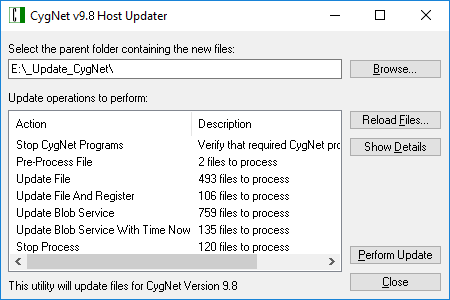
- All action, warning, or errors are displayed in the Process Status dialog box and are written to the CHostUpdater001.log file, located in the folder from which the utility was run.
Note: Clicking Close will merely abort the operation; it will not restore your files.
|
CygNet Host Updater Utility —Process complete |
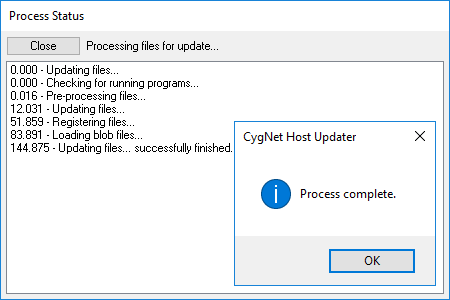
- A Process complete pop-up is displayed when the update process is complete. Click OK.
- Close the Process Status dialog box.
- Close the CygNet Host Updater.
- Restart your system using CygNet Host Manager.
Using CygNet Host Updater After a Failover
Users need to be cautious when running the CygNet Host Updater utility in an environment running multiple domains that have been fully or partially failed over. It is important to know that CygNet Host Updater is domain-aware and that awareness is of the domain originally installed on the host server, not the domain of the server that is currently running.
In addition to the CygNet Host Updater’s primary function of copying new CygNet files to the local host where the utility is running and dropping files into the APPS folder, the utility also talks (via CygNet messaging) to any live APPS services in the CygNet environment.
After a full or partial failover, the domain on the server could be different to the one originally installed. CygNet Host Updater (and most other CygNet utilities) assumes that the domain on which it communicates, is the original domain on which the server was installed. After a failover the server is now running on a different domain, and CygNet Host Updater assumes it is talking to services running on the local host, when in fact it may be actually talking to services running on a different host.
This behavior results in CygNet Host Updater doing messaging to one set of services, and updating the local APPS files for a different set of services, which may be not as expected.


